
The Complete Guide to Workflow Triggers: Automating Your Business Processes
A comprehensive guide to workflow triggers and automation. Learn how browser extension triggers, webhooks, and schedulers work, how to set them up, and how to use them to improve efficiency, reduce manual effort, and scale your business processes. Includes best practices, troubleshooting tips, and real-world automation examples.
The Complete Guide to Workflow Triggers: Automating Your Business Processes
Table of Contents
- Introduction to Triggers
- Understanding Different Types of Triggers
- Setting Up Your First Trigger
- Advanced Trigger Configurations
- Best Practices for Trigger Management
- Troubleshooting Common Issues
- Real-World Use Cases
Introduction to Triggers
Workflow triggers are the starting points of your automation journey. Think of them as the “ignition switch” that sets your entire workflow in motion. Without triggers, your carefully crafted automation workflows would remain dormant, waiting indefinitely for someone to manually start them.
What Are Triggers?
A trigger is an event or condition that automatically initiates a workflow execution. When the specified trigger condition is met, your workflow begins executing all subsequent steps. This automation removes the need for manual intervention and ensures your business processes run smoothly—even when you’re not monitoring them.
Why Triggers Matter
In today’s fast-paced business environment, manual processes are not just inefficient—they’re difficult to scale. Triggers enable you to:
- Respond instantly to important events
- Maintain consistency in business processes
- Scale operations without increasing manual work
- Reduce human error
- Automate work 24/7
Understanding Different Types of Triggers
Our platform offers several types of triggers, each designed for specific use cases.
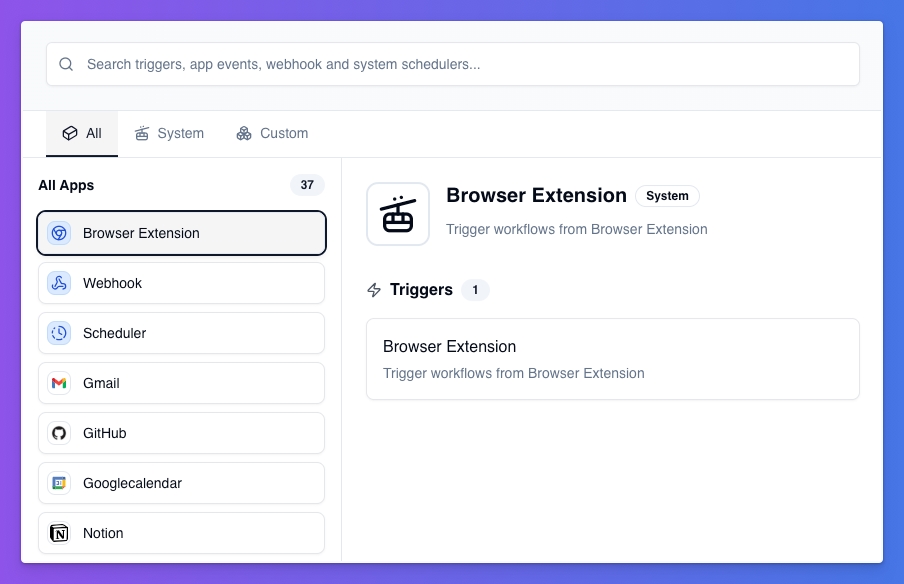
1. Browser Extension Trigger
The Browser Extension trigger allows you to initiate workflows directly from your browser.
Key Features:
- Instant workflow activation
- Context-aware data capture
- One-click automation
Common Use Cases:
- Lead generation from LinkedIn
- Price monitoring
- Content extraction
- Social media tasks
- Competitive research
How to Set Up:
- Install the browser extension
- Configure the trigger
- Define captured data
- Set up authentication if needed
- Test the trigger
Pro Tips:
- Use CSS selectors
- Apply filters
- Use rate limiting
2. Webhook Trigger
Webhooks allow external systems to notify your workflows when specific events occur.
Key Features:
- Real-time notifications
- Secure HTTP/HTTPS
- Flexible data payloads
- Authentication options
Common Use Cases:
- Payment notifications
- Form submissions
- API integrations
- Third-party alerts
- Ticket creation
How to Set Up:
- Create a webhook trigger
- Copy the webhook URL
- Configure the external system
- Define expected data format
- Add authentication if needed
- Test with sample payloads
Security Considerations:
- Use HTTPS
- Signature verification
- IP whitelisting
- Activity monitoring
Example Webhook Configuration:
(Keep this block as-is for clarity)
{
  "webhook_url": "https://api.yourplatform.com/webhooks/abc123",
  "method": "POST",
  "headers": {
    "Content-Type": "application/json",
    "Authorization": "Bearer your-secret-token"
  },
  "expected_payload": {
    "event_type": "string",
    "data": "object",
    "timestamp": "string"
  }
}
3. Scheduler Trigger
The Scheduler trigger allows time-based workflow execution.
Key Features:
- Flexible scheduling options
- Timezone support
- Recurring or one-time runs
- Holiday/weekend handling
Scheduling Options:
Fixed Intervals:
- Every minute, hour, day, week, month
- Custom intervals
Specific Times:
- Daily or weekly at set times
- Monthly schedules
Cron Expressions:
- Complex schedules
- Seasonal patterns
Common Use Cases:
- Report generation
- Data backup
- System maintenance
- Social media posting
- Inventory updates
How to Set Up:
- Select Scheduler
- Choose simple or advanced
- Set frequency
- Set timezone
- Optional: start/end dates
- Test with a dry run
Cron Examples:
0 9 * * 1-5    (Weekdays at 9 AM)
0 */4 * * *    (Every 4 hours)
0 0 1 * *      (First day of month at midnight)
30 14 * * 0    (Sundays at 2:30 PM)
4. App Triggers (Third-Party Integrations)
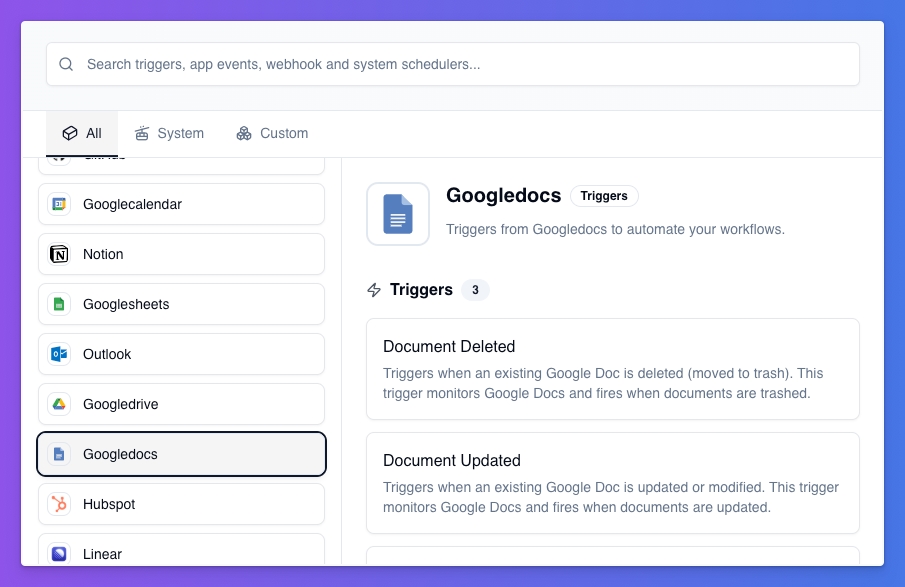
App Triggers connect workflows to popular apps using our Composio integration layer.
Key Features:
- Pre-built integrations
- Real-time or polling
- Secure OAuth
- Rich event data
- Guided setup
Below is a condensed list of major app trigger categories and examples.
Email & Communication Apps
Gmail:
- New Email (with filtering options)
Outlook:
- New Message
- Calendar Events (added/updated/deleted)
- New Contact
- Sent Messages
Discord:
- New Channel Message
Productivity & Project Management
Notion:
- New Page
- Page Updated
- New Comment
- All Page Events
Google Workspace:
- Sheets: New Rows, New Sheet
- Drive: File/Folder Changes
- Docs: New or Updated Document
- Calendar: Event Sync
- Slides: New Slide
Asana:
- Task Events
Trello:
- New Card
- Card Updated/Archived
- New Board
- Activity Events
Linear & Jira:
- Issue Created
- Issue Updated
- Comments
- Project Created
Sales & CRM
HubSpot, Salesforce, Pipedrive triggers for contacts, deals, leads, notes, and more.
Finance & Payments
Stripe:
- Checkout Completed
- Payment Failed
- Invoice Paid
- Subscription Added/Deleted
- Product Created
- Charge Failed
Marketing & Analytics
Mailchimp:
- Subscribe
- Unsubscribe
- Profile Updates
- Campaign Events
YouTube:
- New Activity
- New Playlist / Item
- New Subscription
Development
GitHub:
- Commits
- Pull Requests
- Issues
- Stars
- Labels
- Followers
Customer Support
Zendesk:
- New Ticket
- New User
Educational Platforms
Canvas:
- Assignment Graded
- New Submission
- Discussion Messages
- New Courses
- File Uploads
Other Apps
Todoist, OneDrive, Coda, Fireflies, and more.
Setting Up App Triggers
Step 1: Choose App
Select the app and event type.
Step 2: Authenticate
Use OAuth.
Step 3: Configure Settings
Apply filters, IDs, and polling intervals.
Step 4: Test
Ensure sample data is correct.
Security:
- OAuth 2.0
- Encrypted credentials
- Granular permissions
Polling vs Real-Time:
Choose based on latency needs.
Setting Up Your First Trigger
Step 1: Open Workflow Builder
Step 2: Add Trigger Node
Step 3: Configure Trigger
Step 4: Test Trigger
Step 5: Connect Actions
Step 6: Deploy & Monitor
Advanced Trigger Configurations
Trigger Filters
- Data filters
- Time-based rules
- Rate limiting
Error Handling
- Retry rules
- Alerts
- Fallback actions
Multi-Trigger Workflows
- OR logic
- AND logic
- Sequential triggers
Best Practices for Trigger Management
1. Naming & Organization
- Clear names
- Folder structures
2. Documentation
- Purpose
- Sample payloads
- Dependencies
3. Monitoring & Alerting
- Performance
- Metrics
- Alerts
4. Security
- Role-based access
- Encryption
- Auditing
5. Testing
- Regular testing
- Staging environment
Troubleshooting Common Issues
Trigger Not Firing
Check activation, configuration, network, authentication, logs.
Duplicate Executions
Use deduplication, unique IDs, timeouts, cooldowns.
Performance Issues
Rate limiting, optimize logic, batch processing.
Data Format Issues
Flexible parsing, validation, schema checks.
Real-World Use Cases
E-commerce Order Processing
Webhook triggers → order confirmation → shipping → CRM.
Customer Support Automation
Email/webhook triggers → categorize → route → acknowledge → follow-ups.
Social Media Management
Scheduler triggers → posting → monitoring → reporting.
Financial Reporting
Scheduler + payment webhooks → reconciliation → compliance → reports.
Marketing Campaigns
Scheduler + email/webhooks → segmentation → follow-ups → ROI tracking.
Conclusion
Triggers are the foundation of workflow automation. To get the most from them:
- Start simple
- Test thoroughly
- Monitor continuously
- Document everything
- Think holistically
Start creating your first trigger today to experience the power of automation on Workbird.